
2026 PDD Conference App
We're Using Sched for Our Conference App
Signing up to use the app is free.
Attendees can download the Sched app from either store:
- iPhone/iPad: Download it from the App Store).
- Android: Get it on Google Play).
After you register on PMIHI.org, you will receive an invite to the app.
You'll be able to
- Self-check in for sessions to record your own attendance
- Build custom schedules to plan your day
- Create a profile and connect with peers
- Chat with other conference attendees, speakers, sponsors, and PMIHI volunteers
- Receive instant notifications such as event announcements and schedule changes
- Download session materials
Tip: Add the session you want to attend to your schedule.
This will enable Check-In Managers on site to quickly find you on the app in a session.
Self Check-In
Important: Self Check-In is the PRIMARY way your attendance will be recorded.
1 min read
You’ll have the option to mark yourself as present for sessions using a session-specific QR code or a check-in button on your mobile device. Below are two easy ways to check yourself in: either by scanning a QR code on-site or manually through the event schedule.
Important: The check-in button will only be available 10 minutes before the session starts and 10 minutes after the session ends.
How to Scan the Session QR code for self check-in at a session
How to check into a session:
1. Log in via mobile web to ensure the check-in button appears.
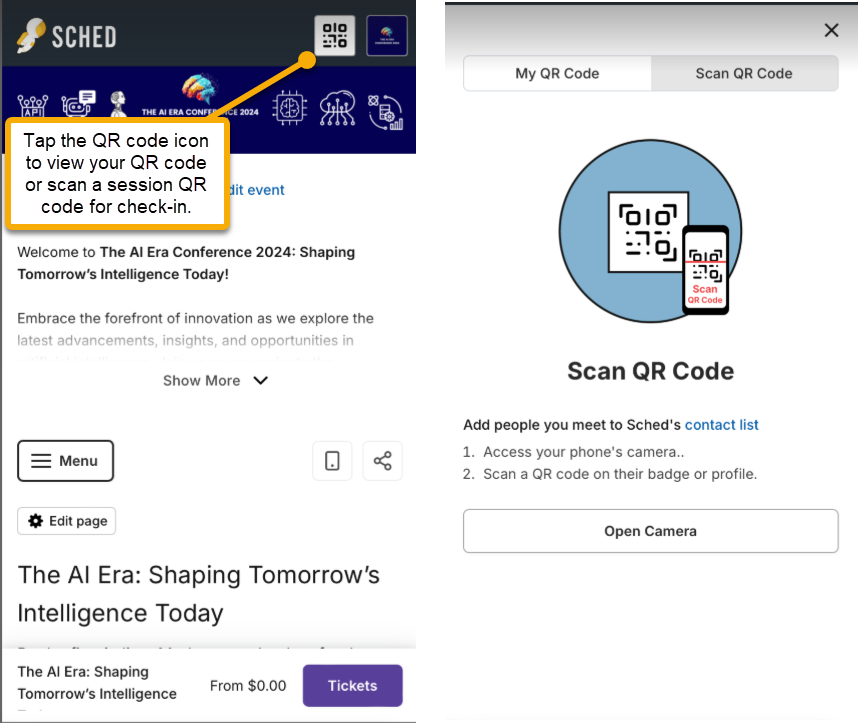
2. Scan the Session QR code. We will have each session's QR code posted in the room. You can scan the QR code directly using your phone’s camera. Make sure you are logged in on the mobile web when scanning with your phone camera.

Important: The check-in button will only be available 10 minutes before the session starts and 10 minutes after the session ends.
How to manually self-check in without scanning the session QR code
If you’re using the mobile web, app, or a regular browser:
- Tap the title of the session you want to check into.
- Look for the “Check In” button on the session page.
- Tap the “Check In” button to complete your self-check-in.
📌 Note: The check-in button will only appear 10 minutes before the session starts and up to 10 minutes after it ends
Watch this video guide for instructions on how to do self-check-in:
Video Player
Other Sched App Features
Attendee QR Code
< 1 min read
You can use the QR code on your badge or in your app profile to easily share your contact information by scanning codes that direct others to their profiles. This feature is activated by default on your profile.
To enable or disable the QR code on your profile:
- Click on your Profile and click Settings.
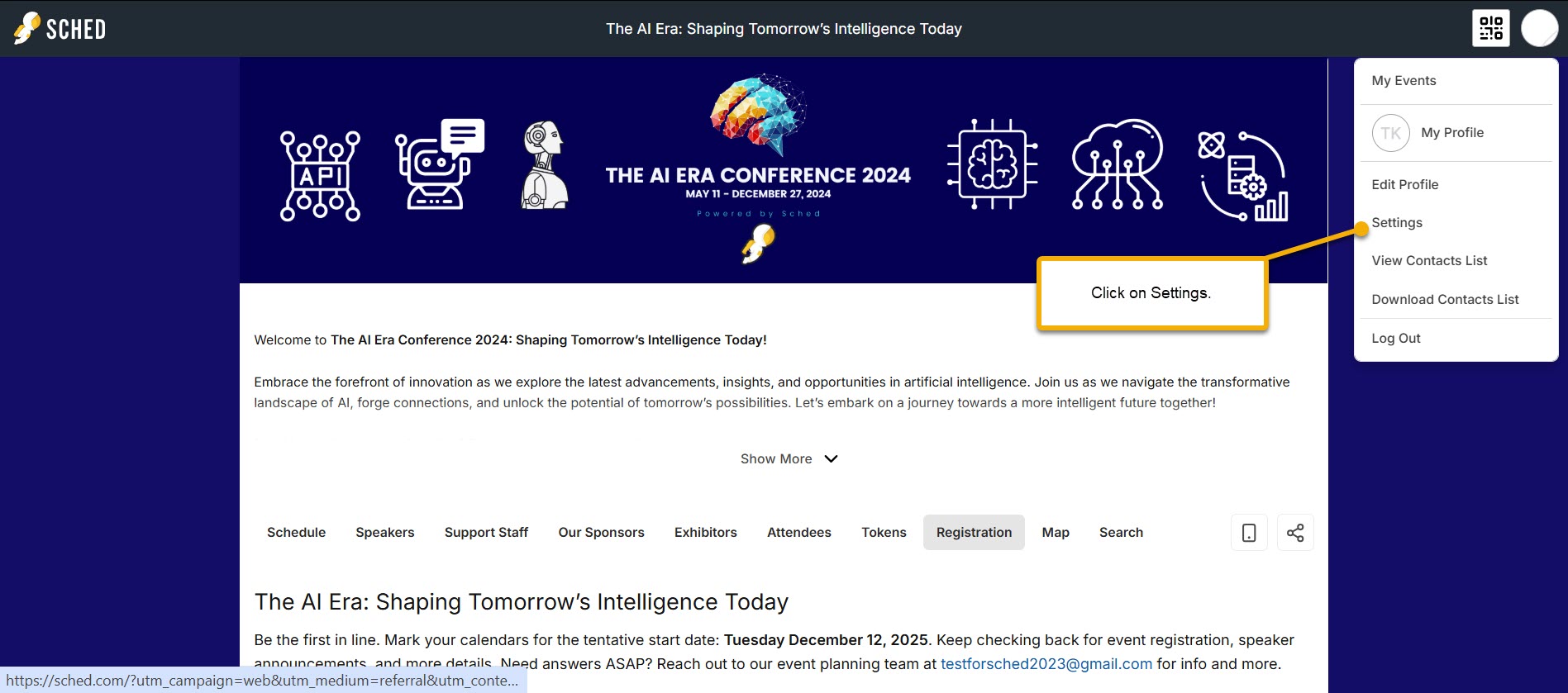
Qr Code 1 - Toggle On/Off the option Make my QR Code public.
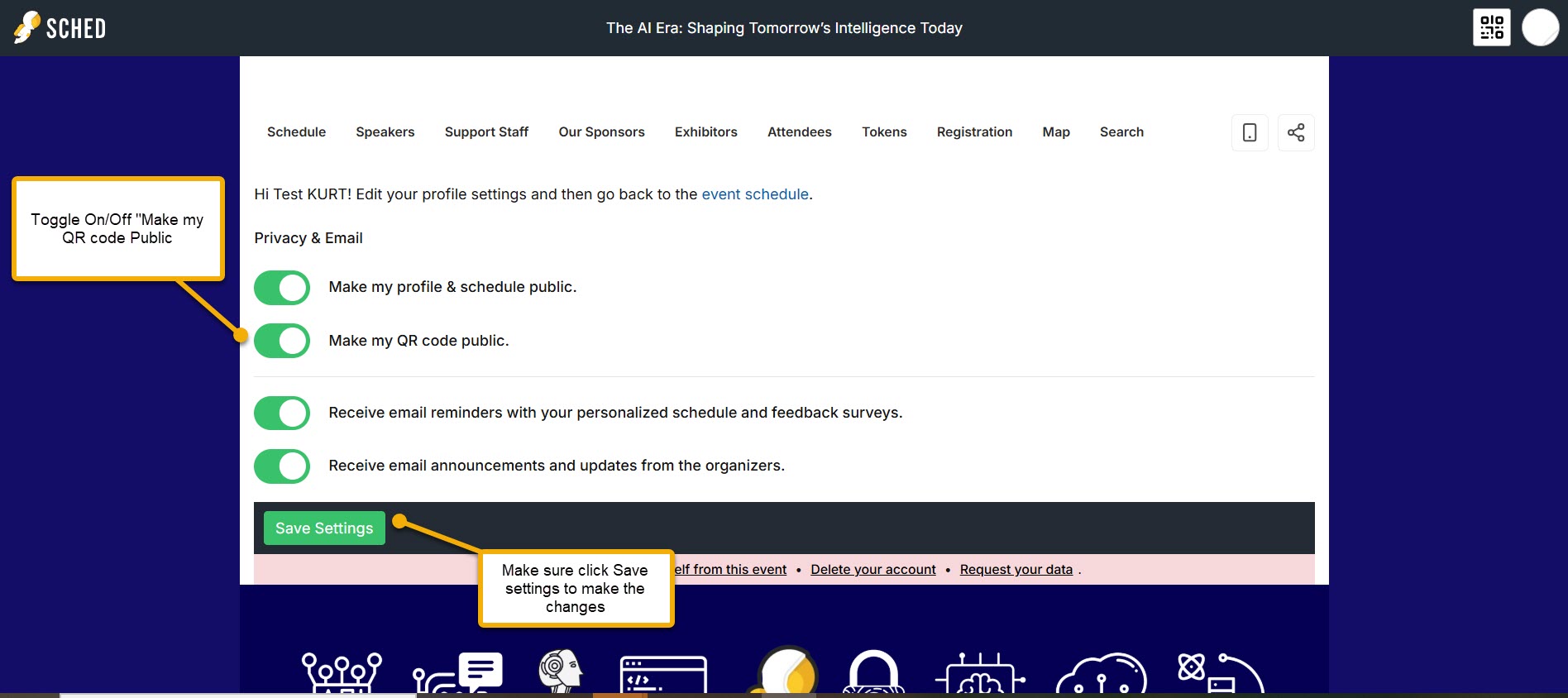
Qr Code 2 - Click Save Settings.
Attendee Networking & My Contacts
1 min read
You can connect with other attendees by scanning QR codes on public profiles. Sched allows you to build a contact list, share your profile information, and add personal notes for reference. How It Works Each public profile — including attendees, sponsors, and other roles — has a unique QR code.
- Scan someone’s QR code to add them to your contact list.
- Share your own QR code (found in the top-right corner of your profile) so others can add you.
- After scanning, you can include personal notes such as how you met or additional contact details (like a phone number or email address).
To scan and add contacts
- Log in to the event using a mobile or desktop browser.
- Go to your profile to display your QR code.
- Use your phone’s camera to scan another attendee’s QR code.
- Click the Add To Contact List button to save them to your contacts.
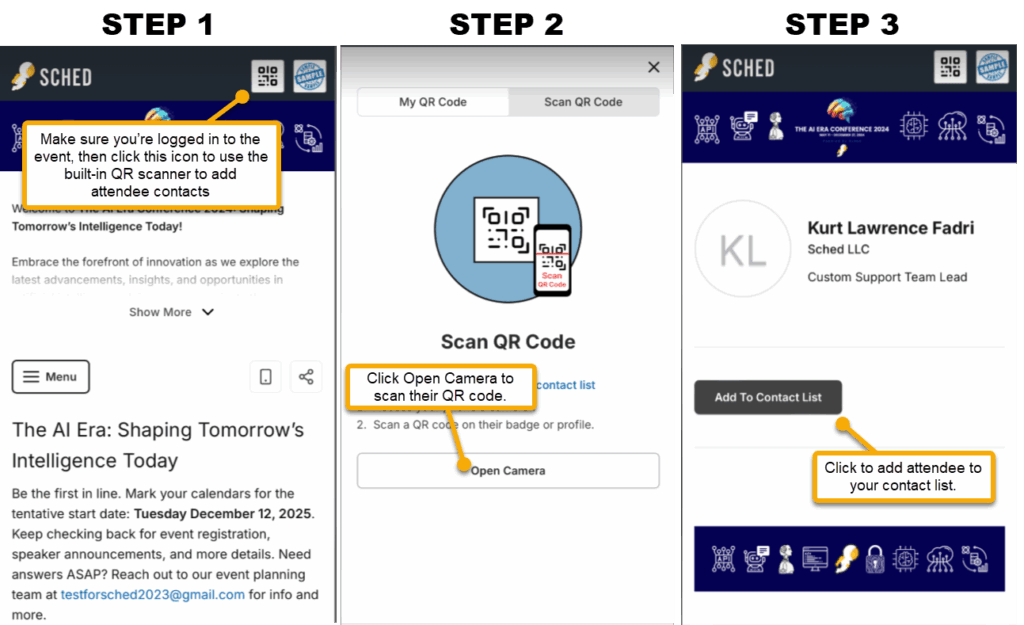
Note: You must be logged in to the event via your web or mobile browser before scanning a QR code. If you’re not signed in, the option to add someone to your contact list won’t appear.
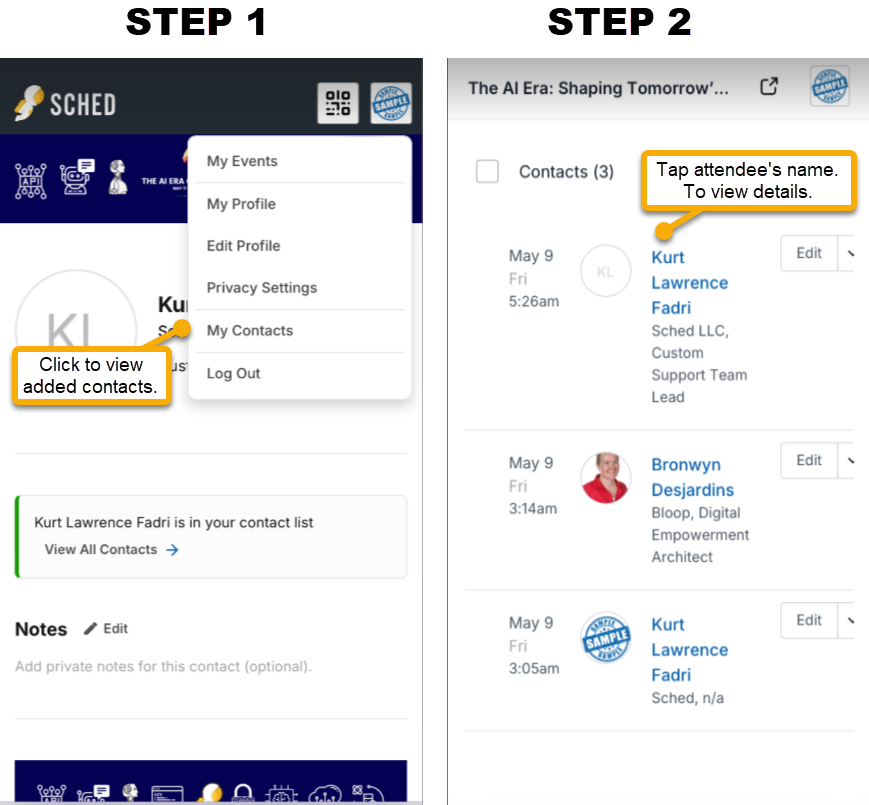
View Your Contact List Once you’ve scanned someone’s QR code:
- Go to your profile menu and tap “My Contacts.”
- You’ll see a list of everyone you’ve added.
- Tap a contact’s name to view their details or “Edit” to add contact notes.
Event Chat
1 min read
Sched’s Chat feature allows you to message and chat with with other Attendees on your event as well as Speakers, Sponsors, Exhibitors etc. You can send direct messages and also create group chats.
Using Chat on the Mobile App
Accessing Chat
- Make sure your Sched profile is set to Public.
- Tap the Chat tab at the bottom of the screen.
Sending Messages
- Tap Create.
- Use the checkboxes to select who you want to message (individual or group).
- You can send:
- A message
- An image
- A file
Renaming Your Group Chat
- Open the group chat you created and tap the “i” icon to view the group details.
- Tap “Edit” at the top right to rename the group chat.
Video Player
https://sched.com/guide/event-chat/
Things To Keep In Mind
- Chat will only be available if the event organizer has enabled this feature. (PMIHI: Yes we have!)
- You can only find and chat with others who have set their Sched profile to Public
- The ability to rename a group chat you created can only be done in the app.
Manage Event Schedule / Agenda
https://sched.com/guide/your-personalized-schedule/
1 min read
Here’s a quick guide to help you browse the agenda, choose sessions, and manage your schedule during the event.
Browse Schedule
There are a variety of options for browsing the schedule / agenda:
- View session details by clicking on a session or hovering over it.
- Switch between different schedule views using the “View as” dropdown menu. Once you select your preferred view, it will become your default each time you log in on the browser.
- You can choose to show all sessions or filter to display only the sessions that are available for you to enroll in.
- Use filters on the right-hand side to narrow down sessions based on what matters most to you.
Select Sessions
Once you registered and logged into an event then you will be able to select sessions.
-
- To Select a Session (add a session to your schedule) click on the circular Check Box and you will see a tick symbol (✓) appear.
- To De-select a Session (remove a session from your schedule) click on the circular Check Box again and you will see the tick symbol (✓) disappear
- If a Capacity has been set on the session then you will see labels to inform you of this (e.g. Session Full, Session Almost Full, Spaces Available).
- If Waitlists have been enabled then you can join the waitlist and be automatically added to the session if a space becomes available.
Note: If a session appears greyed out or you cannot select it, you may already have another session added to your schedule during the same time slot. Some events do not allow overlapping sessions. If you need to attend both, contact the event organizer for help.
View & Manage Your Schedule
Click on My Schedule to access your personalized event plan. You’ll see three options:
- Email – Use the envelope icon to email your schedule to yourself or a friend.
- Print – Click the print icon to get a PDF or print-friendly version of your schedule.
- Calendar – Click Calendar to sync your schedule with Google Calendar, Outlook, or Apple Calendar.
Video Player
https://sched.com/guide/your-personalized-schedule/